Top of page
 Search
 Quick-keys
 TOC
TOC
 Index
Index



Staff Properties
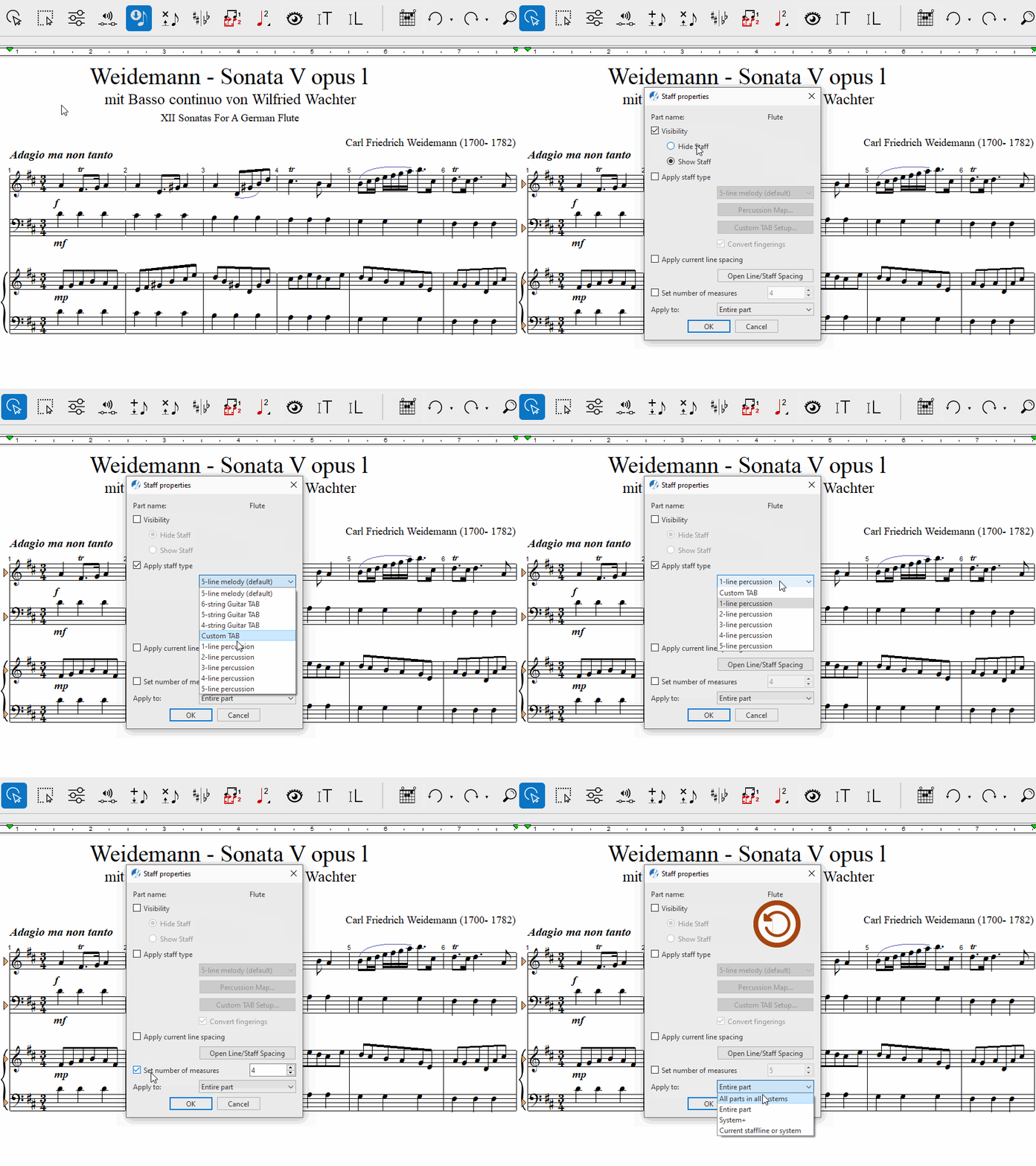
The staff where your cursor is positioned is the "Active Staff". Right-click over the staff and "Staff Properties" window will open. Here, you can make the staff invisible (without deleting the part), convert it to a percussion staff or to Tablature part (or convert TAB part to notation), apply current staffline spacing to other staves (or open the Line/Staff Spacing dialog) and set the number of measures per system. You can apply the changes made to the active staff, subsequent staves or to all staves throughout the score.

How to get there …
a
Right-clicking inside any active staff line will open the Score Properties window. Select Staff Properties.b
Activate the Properties tool (ESC key) then click into the triangle to the left of the part you wish to edit. The Staff Properties dialog box will open.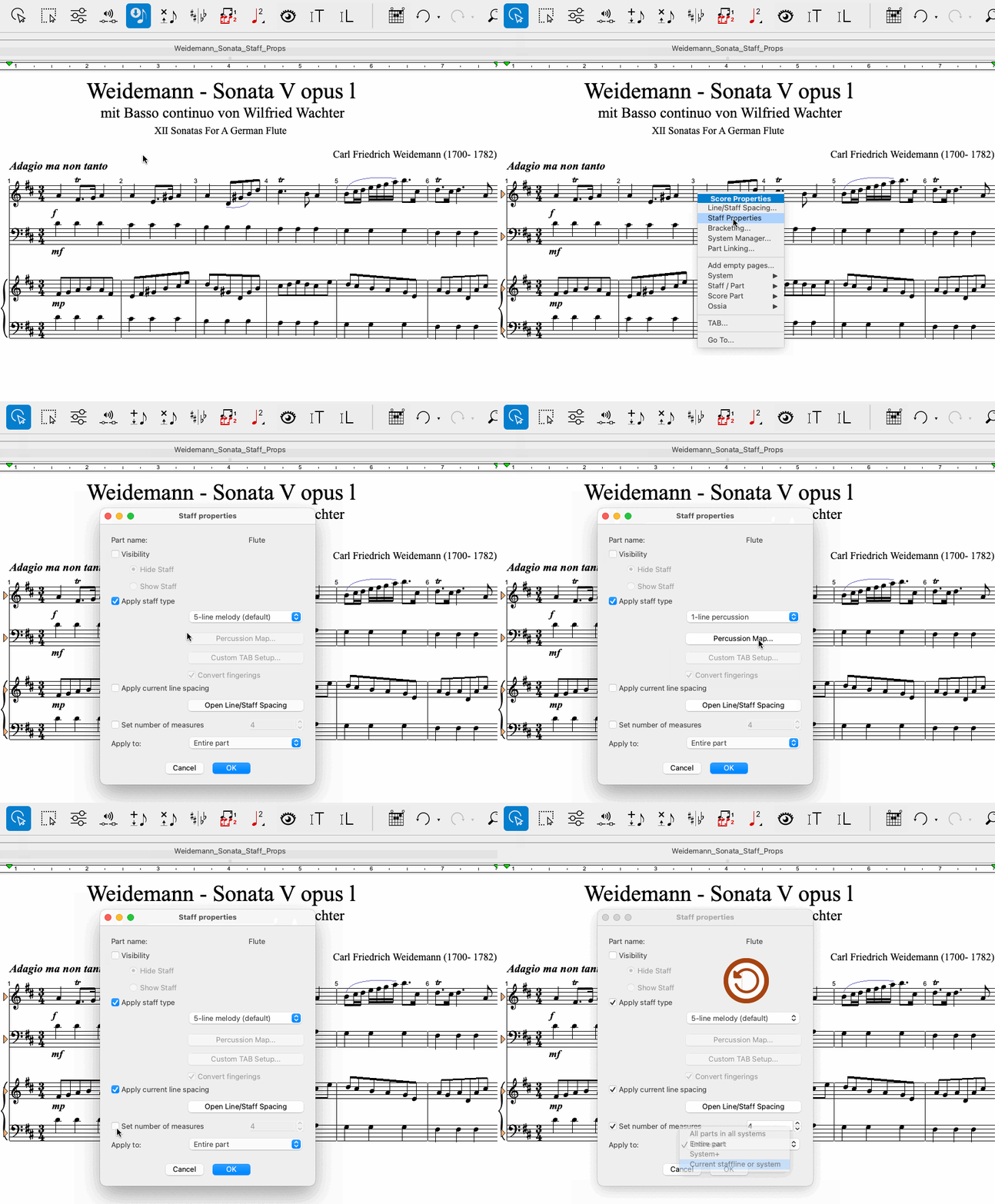
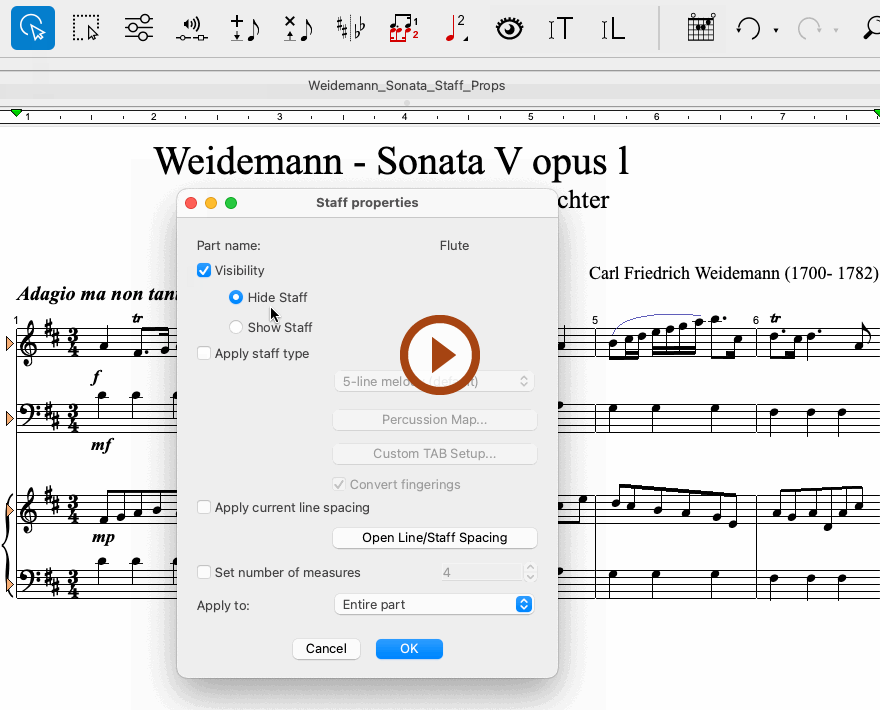
Animation (0:47) - Staff Properties
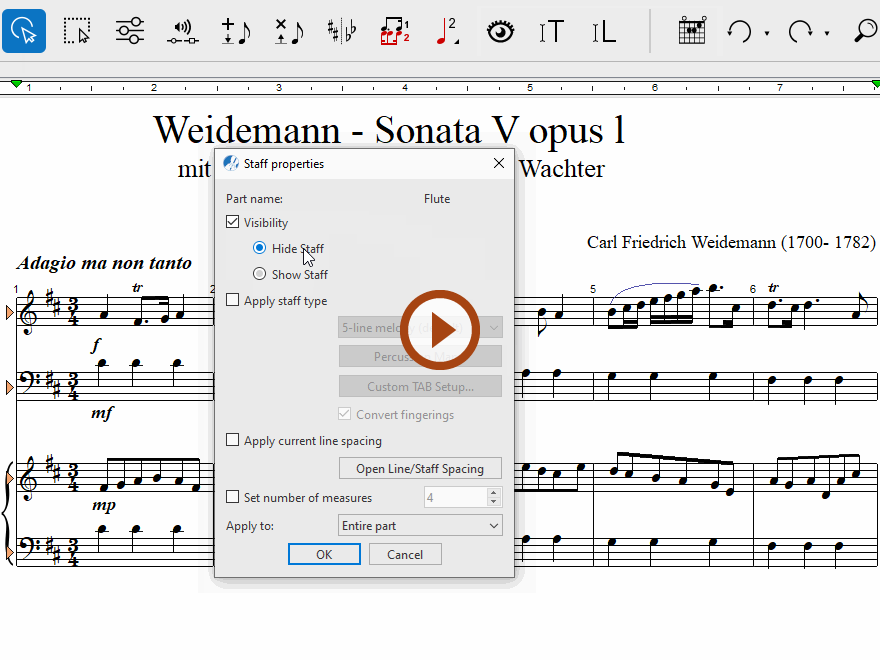
Animation (0:39) - Staff Properties
How to set the number of measures per staff …
1
Open the Score Properties window for the active staff whose number of measures you want to adjust, as described above2
Enable the option Set number of measures and enter the desired quantity in the field on the right.3
Select how to apply the changed number of measures: All parts in all systems, Entire part, the active and all subsequent systems (System+) or Current staffline or system only.Next page ➜
Part Linking ToolSee also ⚆⚆
Score Properties (Overview)Properties Tool (Overview)Navigation ⚐
TOCIndexKeyword searchQuick-keysHomeMacintosh help